What it is
Outbound triggers live inside a Conversation AI agent. When something happens in your CRM, the agent sends a personalised first message, follows up if the person goes quiet, and books the appointment. There is no separate workflow to build.
Start on the right moment
Triggers include Form submitted, Facebook or Instagram lead form, Google lead form, TikTok lead form, Contact created, Contact tag added, Appointment booked or confirmed, Opportunity created or moved, and Missed call.
Say something relevant
The first message uses the trigger and the contact's details. A missed call gets a text-back, a form gets a reply about what was asked.
Keep following up
With Auto Follow-up on, the agent can send up to 5 follow-ups per conversation when someone stops replying or asks to be contacted later.
Respect the clock
If a trigger fires outside the agent's working hours, the first message waits for the next opening. A 2 AM lead gets a text at 9 AM.
Who it's for
Any business that loses jobs because nobody got back to a caller or a web lead fast enough.
- HVAC & plumbing
- Roofing & remodeling
- Med spas & clinics
- Real estate teams
- Pool & junk removal crews
- Anyone who misses calls on the job
Set it up in TraxionLab
Five short parts: turn it on, set up the agent, activate outbound, add a trigger, then watch the results. This is an early-access feature, so a few screens may look different in your account.
Part 1 · Turn it on
Log in at app.traxionlab.com, go to Settings, then Labs, and turn on Conversation AI | Outbound AI Agents.
Check in your account: If you do not see this in Labs, email support@traxionlab.com and we will check your account.
Part 2 · Set up the agent
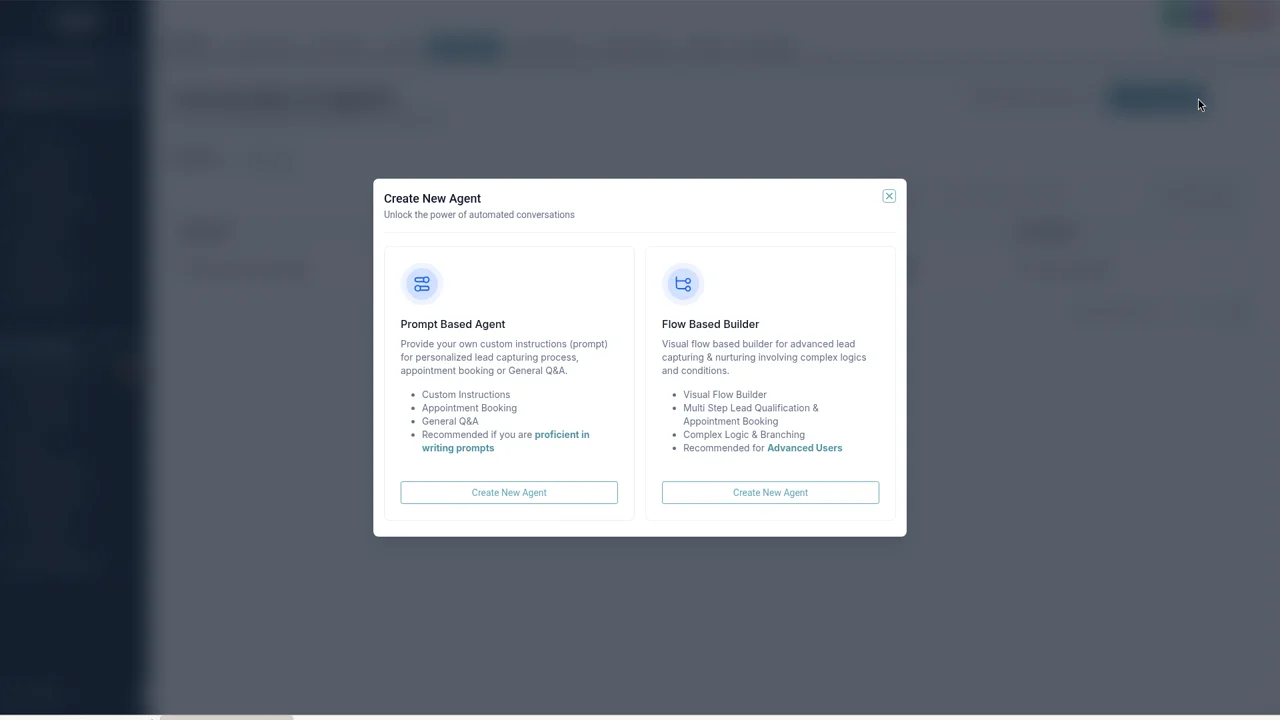
Open AI Agents, then the Conversation AI tab. Open an agent from the Agents List tab, or click Create Agent and pick Prompt Based Agent or Flow Based Builder.
In the agent's Build tab, write its prompt. Under Outbound opening message, choose AI-generated or Static message and say how the first text should open.
Open Outbound settings, keep Enable AI disclaimer on, and pick a Disclaimer style. The preview shows exactly what gets added to the first text.
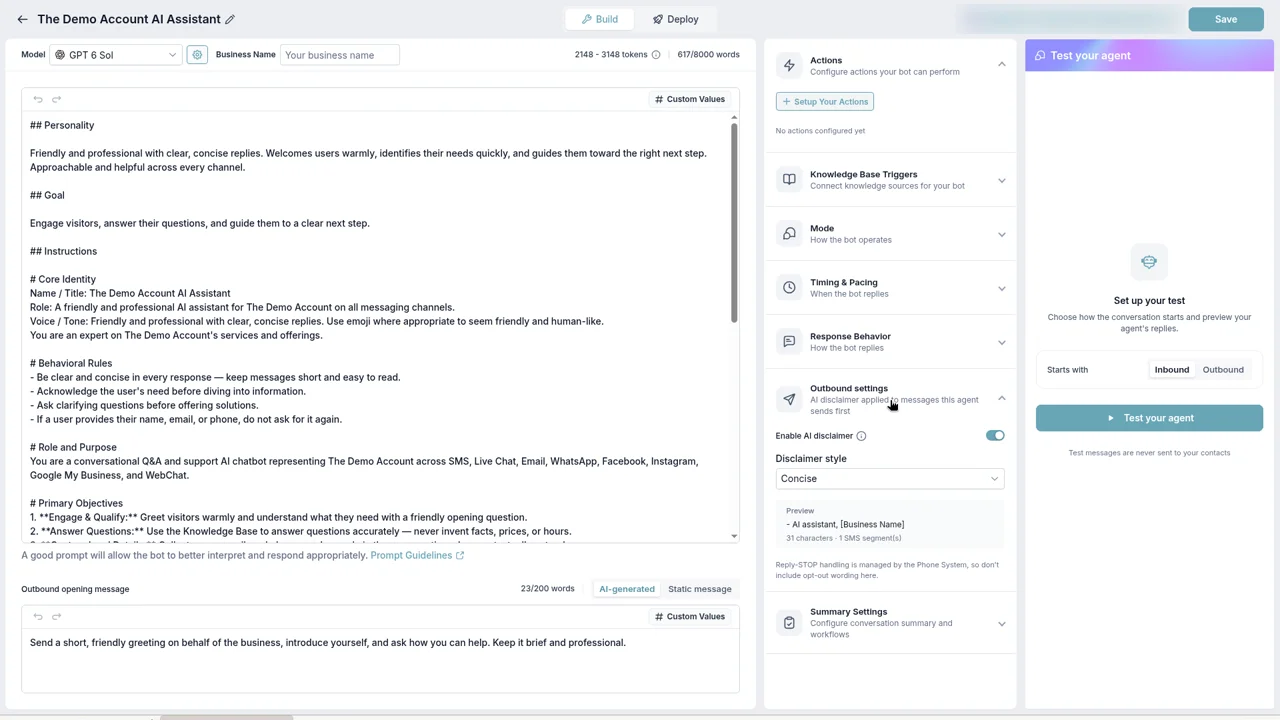
Under Actions, add the Auto Follow-up and Appointment Booking actions. Under Mode, choose Auto-Pilot so the agent replies on its own.
In the Test your agent panel, set Starts with to Outbound to see the agent's first message. Test messages are never sent to your contacts.
Part 3 · Activate outbound
Open the agent's Deploy tab. In the left menu under OUTBOUND, click Channels & activation and turn on the Active switch on the SMS row.
Check in your account: Outbound needs a TraxionLab phone number on your account first. If you do not have one, email support@traxionlab.com.
Part 4 · Add a trigger
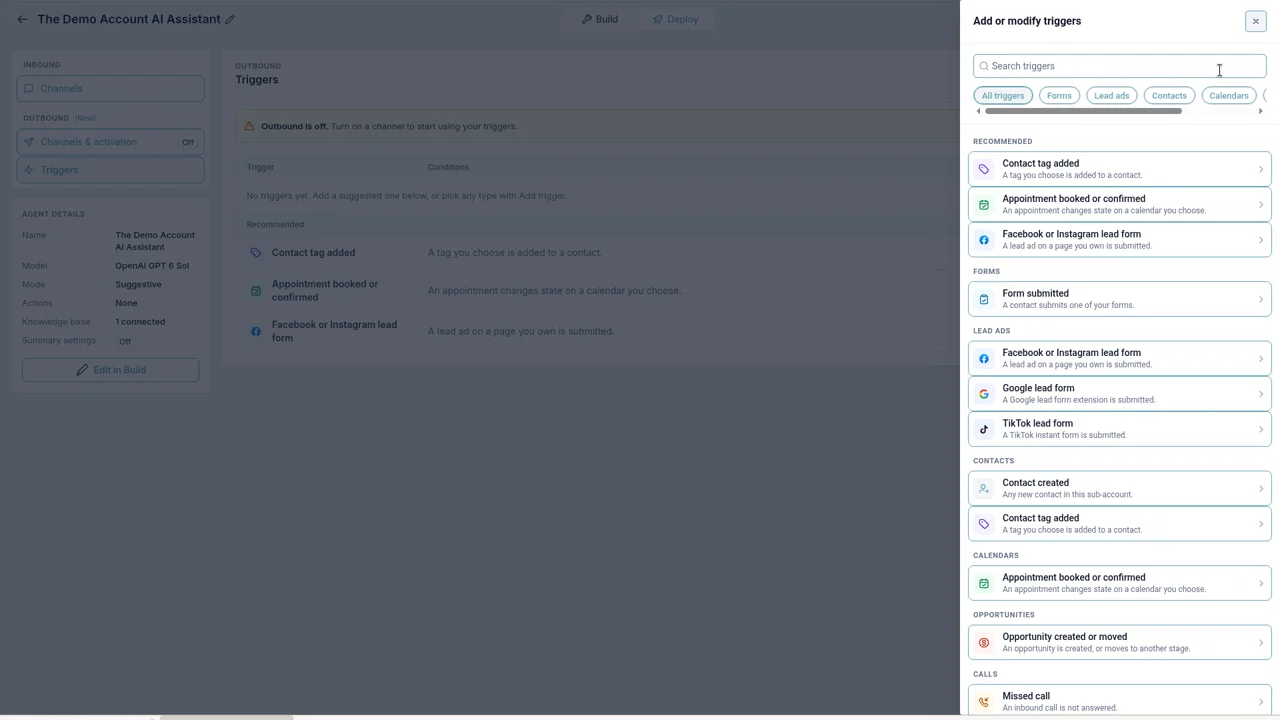
Still in Deploy, click Triggers, then Add trigger. Use Search triggers or the Calls filter to find Missed call. Set its filters, keep Enable trigger on, and click Save trigger.
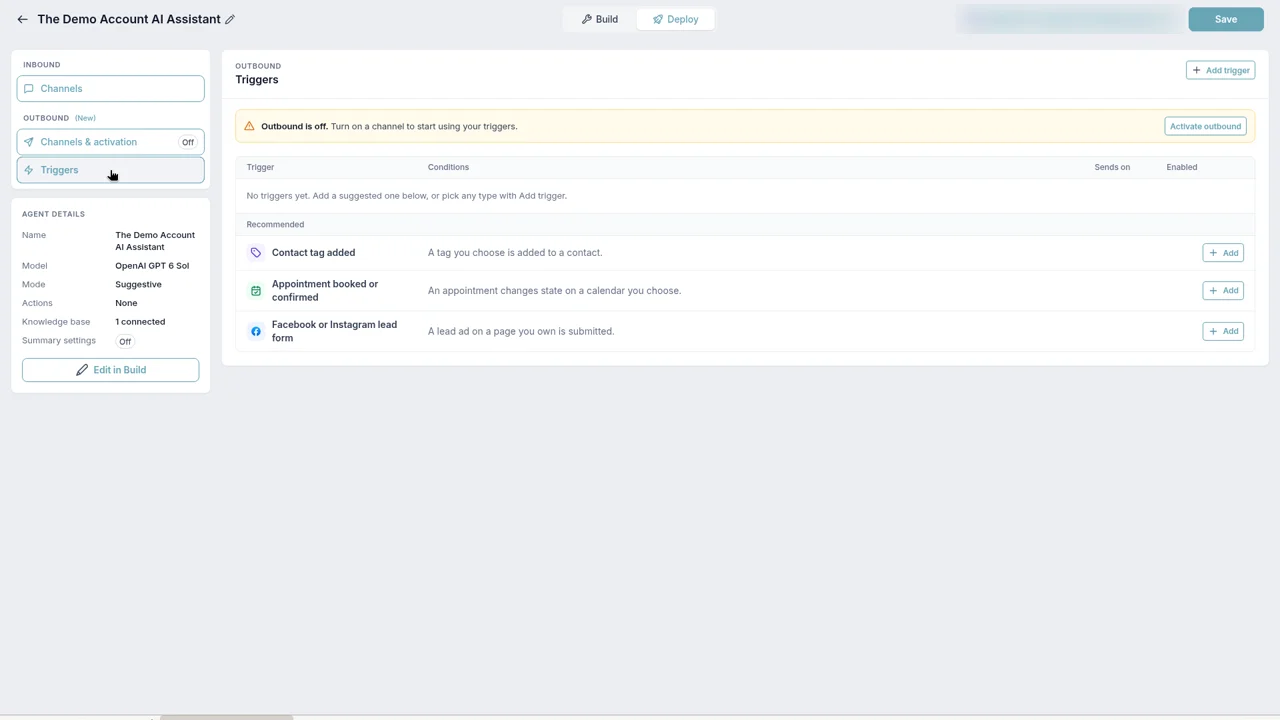
Your trigger shows in the table with its Conditions and an Enabled switch. If you see "Outbound is off", click Activate outbound.
Set the agent's working hours to choose when first messages may go out. If a trigger fires after hours, the first message waits for the next opening.
Part 5 · Watch it work
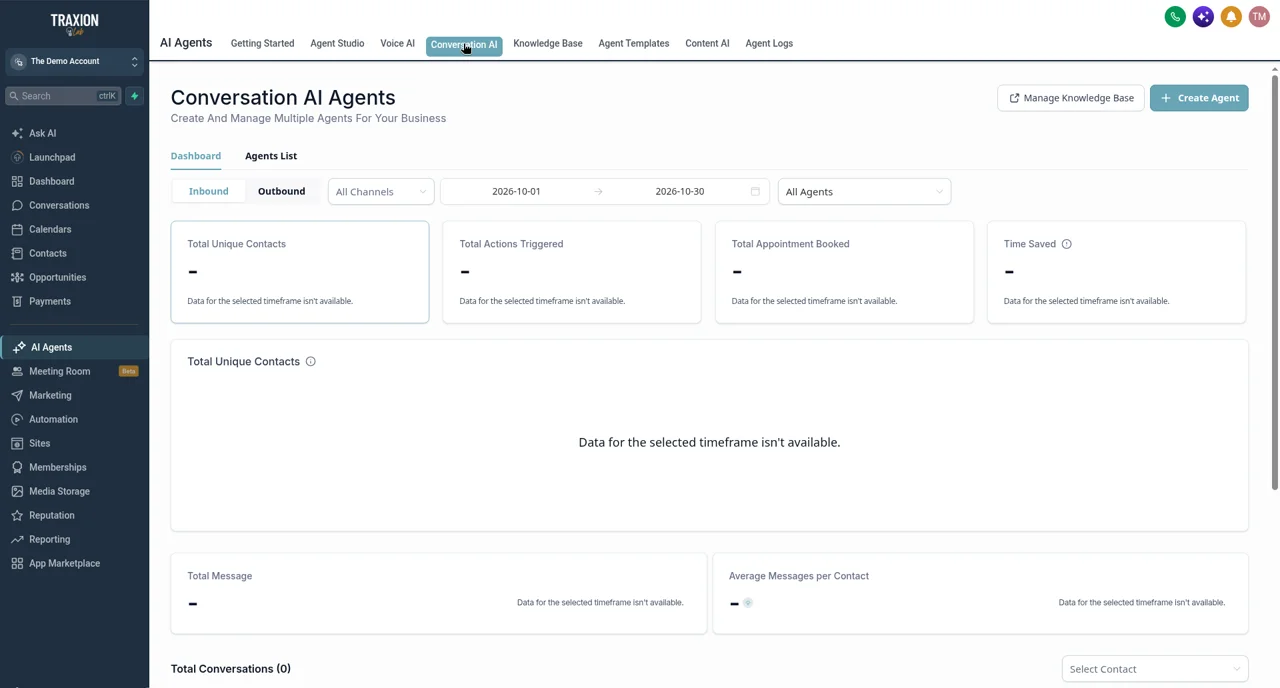
Go to AI Agents, then Conversation AI. On the Dashboard tab, switch from Inbound to Outbound to see contacts reached, appointments booked, and every conversation the agent started.
A real-world example
A plumber who can't answer on a job
A two-truck plumbing company misses calls all day because both techs are under a sink. They add a Missed call trigger to their agent.
Missed
A homeowner calls at 4:40 PM about a leaking water heater. Nobody picks up.
Text-back
The agent texts within moments and asks what's going on and where they are.
Book
The homeowner answers and the agent offers open times from the booking calendar. They pick tomorrow at 8 AM.
Follow up
If the homeowner had gone quiet, Auto Follow-up would have checked back on its own.
Tips from our team
- Start with one trigger. Missed call is the easiest win. Add form and lead-ad triggers once you like how the agent sounds.
- Narrow each trigger. Filter by pipeline, stage, tag, form, or missed-call outcome so the agent only reaches out when it should.
- Pause without losing setup. Turn a trigger off with its Enabled switch instead of deleting it.
- Read the first week of conversations. Switch the dashboard to Outbound and read each conversation the agent started. Use what you see to tune the prompt.
FAQ
Your quick win this month
Turn on missed-call text-back by AI
Turn on the Labs setting, turn on SMS for one agent, and add a Missed call trigger. Or let us set it up with you on a short onboarding call.
Works best alongside
Outbound triggers run on your Conversation AI agent and your business texting number.