What it is
AI Campaigns starts from your Contacts page. You pick an audience and an agent. Before it reaches out, the agent looks at each contact's past interactions with your business and writes a personalised opening message. When people reply, the same agent answers questions and books the appointment.
Ready-made audiences
Pick a prebuilt segment such as Contacts who engaged, Uncontacted new leads, Open opportunities with no activity, No appointment since, or Opportunities lost, in a 7, 15, or 30-day window or a custom one.
Or use your own list
Pick any Smart List you have saved on the Contacts page, so you can target exactly the people you want.
Send your way
Send all at once, at a scheduled time, or in drip mode: batches of your size, every few days, on the weekdays and hours you choose.
See every outcome
Each campaign shows up under Bulk Actions with a live status. Statistics shows Completed, Skipped with the reason, or Error for each contact, and you can download the results.
Who it's for
Any business with a list of past quotes, past customers, or leads that went cold.
- HVAC tune-up and maintenance lists
- Roofers with old estimates
- Med spas with lapsed clients
- Real estate agents with old buyer leads
- Pool service seasonal openings
- Junk removal repeat customers
Set it up in TraxionLab
Set up the agent once, then launching a campaign takes a few clicks. This is an early-access feature, so a few screens may look different in your account.
Part 1 · Turn it on and set up the agent
Log in at app.traxionlab.com. In Settings → Labs, turn on Conversation AI | Outbound AI Agents.
Check in your account: If you do not see this in Labs, email support@traxionlab.com.
In AI Agents → Conversation AI, click Create Agent or open one from Agents List. In the Build tab, write its prompt and its Outbound opening message, and keep Enable AI disclaimer on under Outbound settings.
Under Actions, add Auto Follow-up and Appointment Booking, and set Mode to Auto-Pilot.
In the agent's Deploy tab, under OUTBOUND, open Channels & activation and turn on Active on the SMS row.
Check in your account: Outbound needs a TraxionLab phone number on your account. Until an agent has outbound turned on, it will not show up in the campaign's Agent list.
Part 2 · Launch a campaign
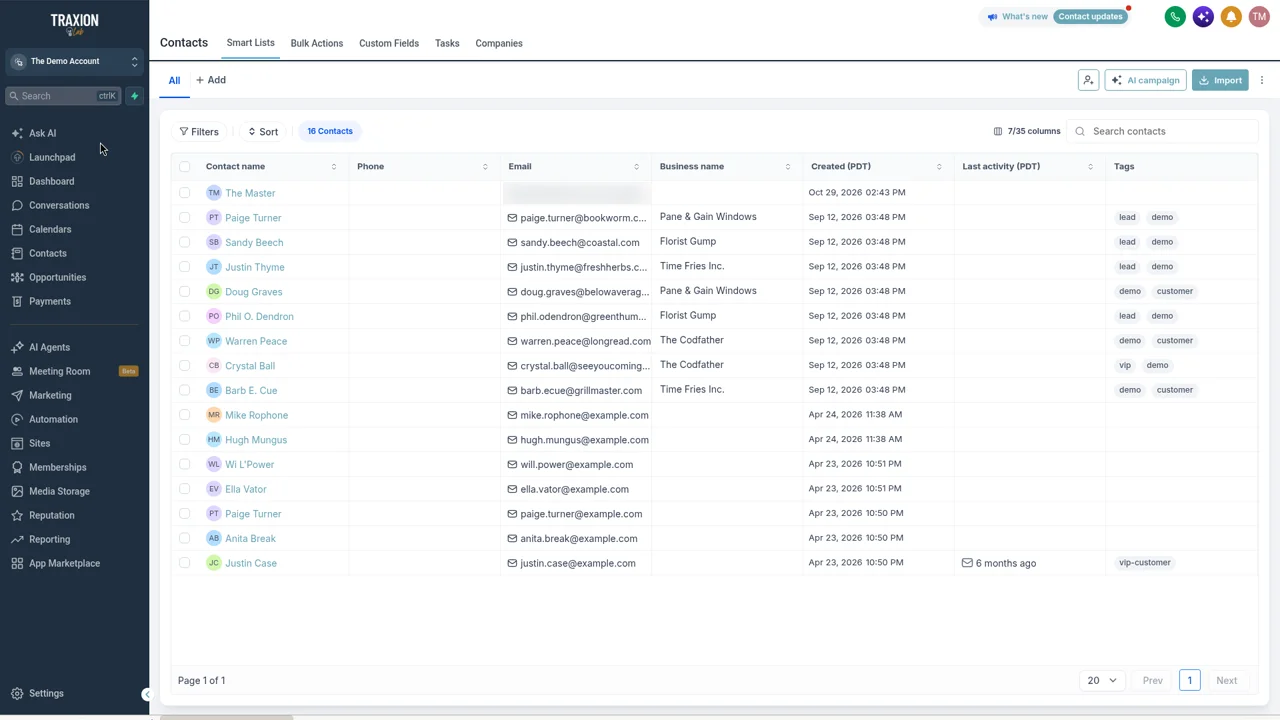
Go to Contacts → Smart Lists and click AI campaign, next to Import. The Start Conversation AI campaign window opens.
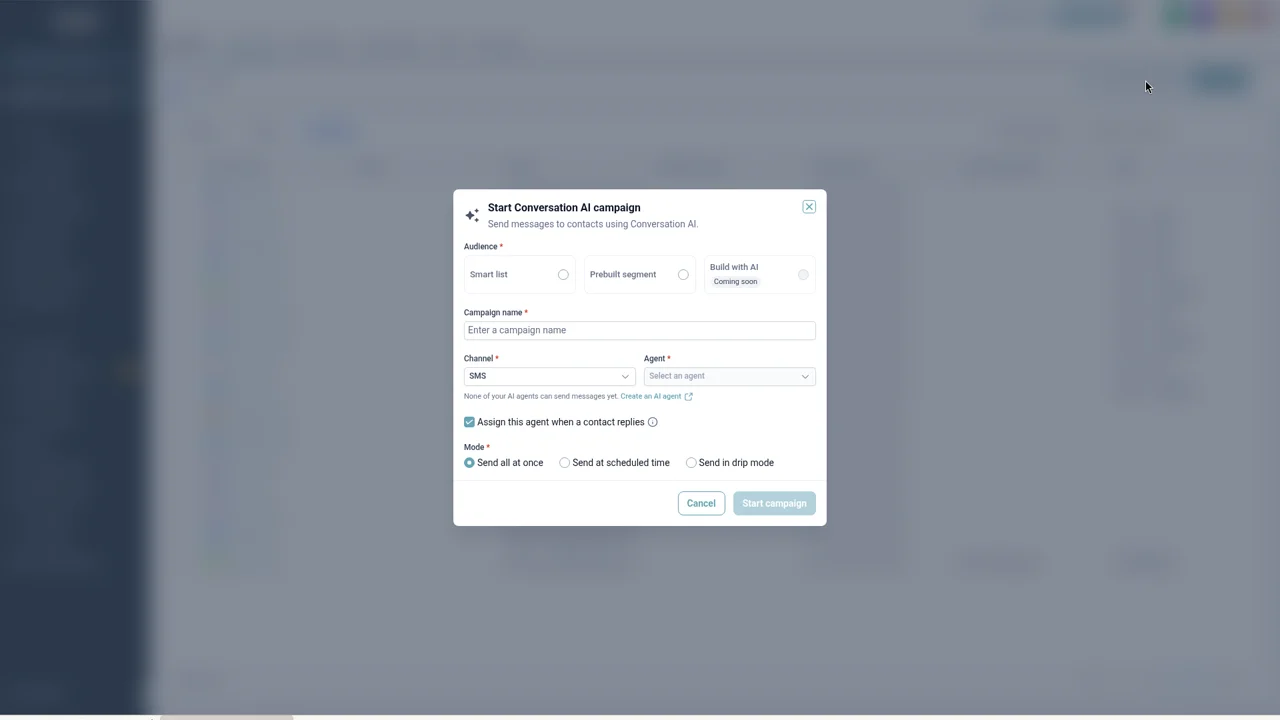
Under Audience, pick Smart list or Prebuilt segment. Enter a Campaign name, leave Channel on SMS, and choose your Agent.
Leave Assign this agent when a contact replies checked so the agent handles every answer. Under Mode, choose Send all at once, Send at scheduled time, or Send in drip mode, then click Start campaign.
Part 3 · Track results
Open Contacts → Bulk Actions, find the campaign, and click Statistics to see each contact's outcome.
A real-world example
An HVAC company before the first cold snap
An HVAC shop has hundreds of past customers who haven't booked a furnace check this year.
Pick
They choose the No appointment since segment and their booking agent.
Drip
They send in drip mode, a small batch each weekday morning, so the phones stay manageable.
Reply
A customer writes back asking if Saturday works. The agent offers open slots and books it.
Review
On Friday they open Statistics and download who was reached, skipped, or errored.
Tips from our team
- Use drip mode for big lists. Smaller daily batches mean replies arrive at a pace your team can handle.
- Give the opening message a reason. The agent's Outbound opening message guides every first text. Tell it what you are offering and why now.
- Add a human handover. Add a Human Handover action so the agent passes a conversation to you when it should.
- Read the Skipped reasons. Statistics shows why a contact was skipped, which is an easy way to clean up your list.
FAQ
Your quick win this month
Reach out to 25 old leads this week
Pick the Uncontacted new leads segment, send in drip mode, and see who books. Or let us set it up with you on a short onboarding call.
Works best alongside
AI Campaigns start from your contacts and run on your Conversation AI agent.