What it is
Calendar view settings brings your display preferences into one panel. Export takes the exact view you're looking at, with the same filters and dates.
Your time zone, your grid
Show times in the time zone you choose and set the day and week grid to 15, 30, or 60 minutes. Only your view changes.
See real availability
Grey out hours outside each staff member's working time, hide empty rows and columns, and show buffer time around appointments.
Color by staff
Color events by calendar colors or staff colors. Admins can recolor staff, and the color strip is wider.
Export the view
Export the current view to PDF or CSV with the same filters and date range.
Who it's for
Teams that run their day from the calendar.
- Dispatchers for HVAC, plumbing & roofing
- Med spa front desks
- Pool & junk removal crews
- Logistics schedulers
- Owners with more than one staff calendar
Set it up in TraxionLab
Nothing to turn on. Open your calendar and use the more options menu.
Part 1 · Adjust the view
Log in at app.traxionlab.com, open Calendars, click the more options menu (⋮) next to Manage view, and choose Calendar view settings.
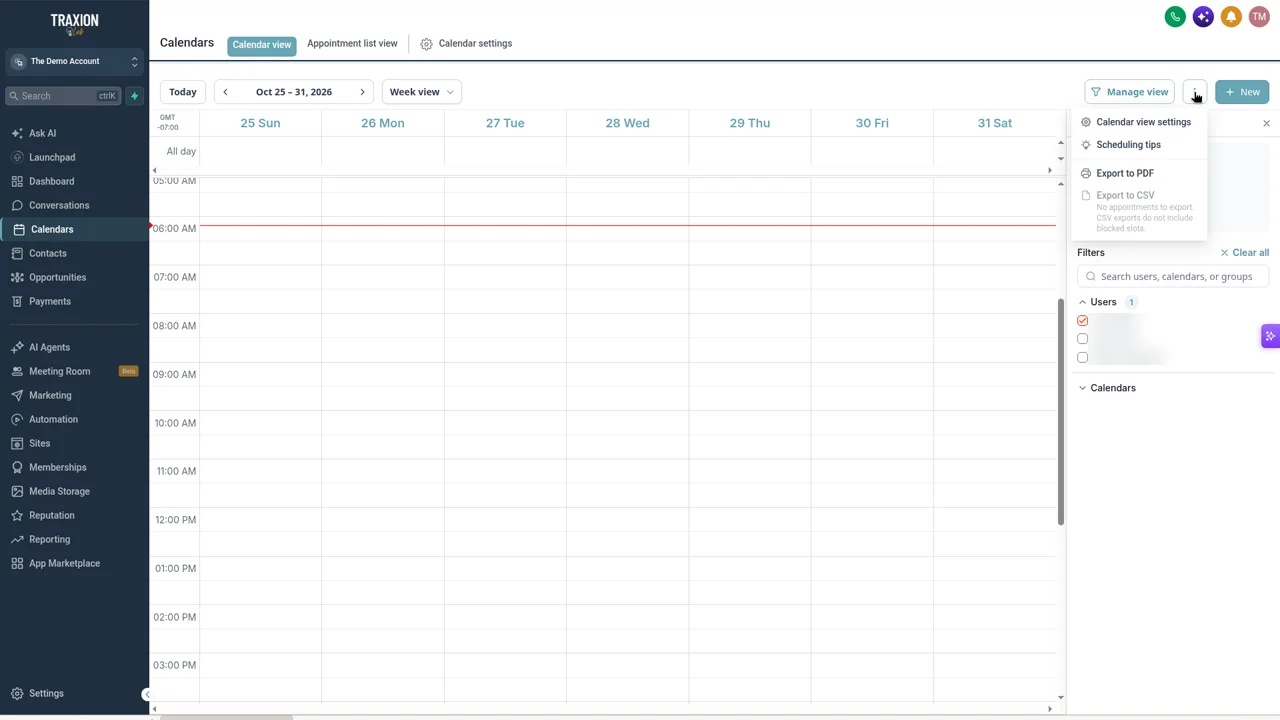
On the General tab, set View appointments in and Grid interval, then turn on any of Grey out hours outside working time, Hide empty rows and columns, and Show buffer time. Click Save changes.
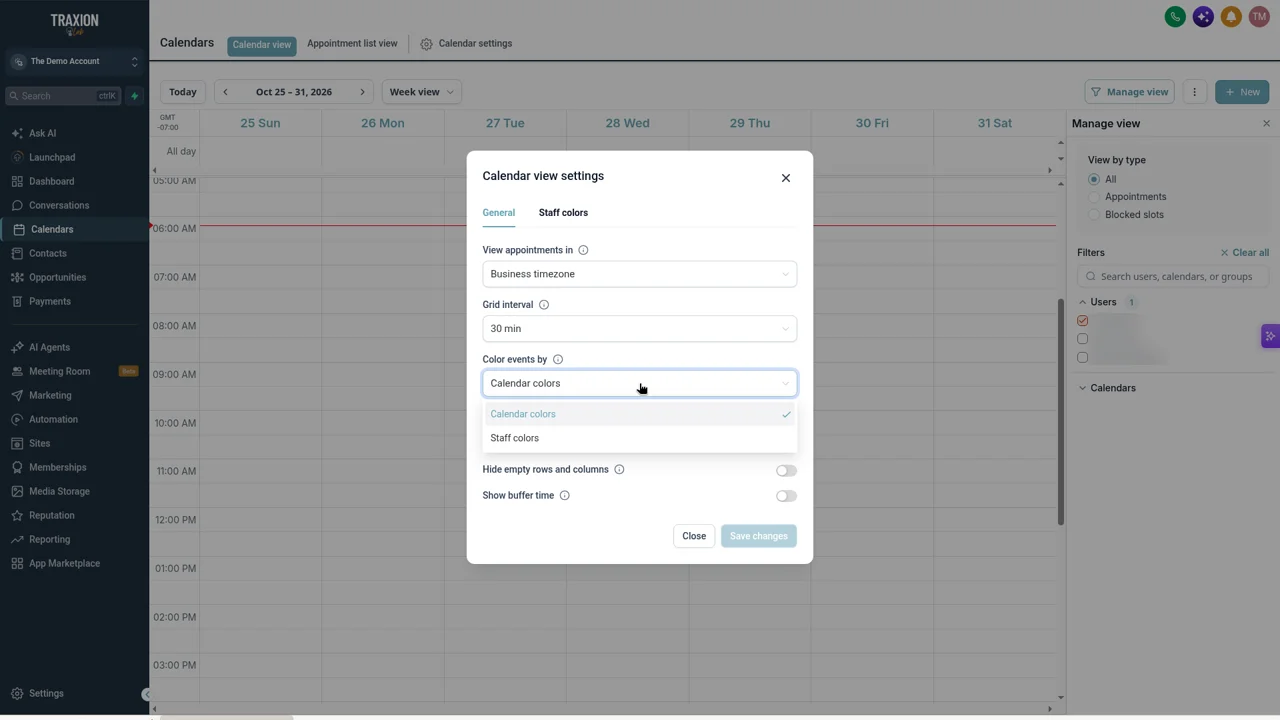
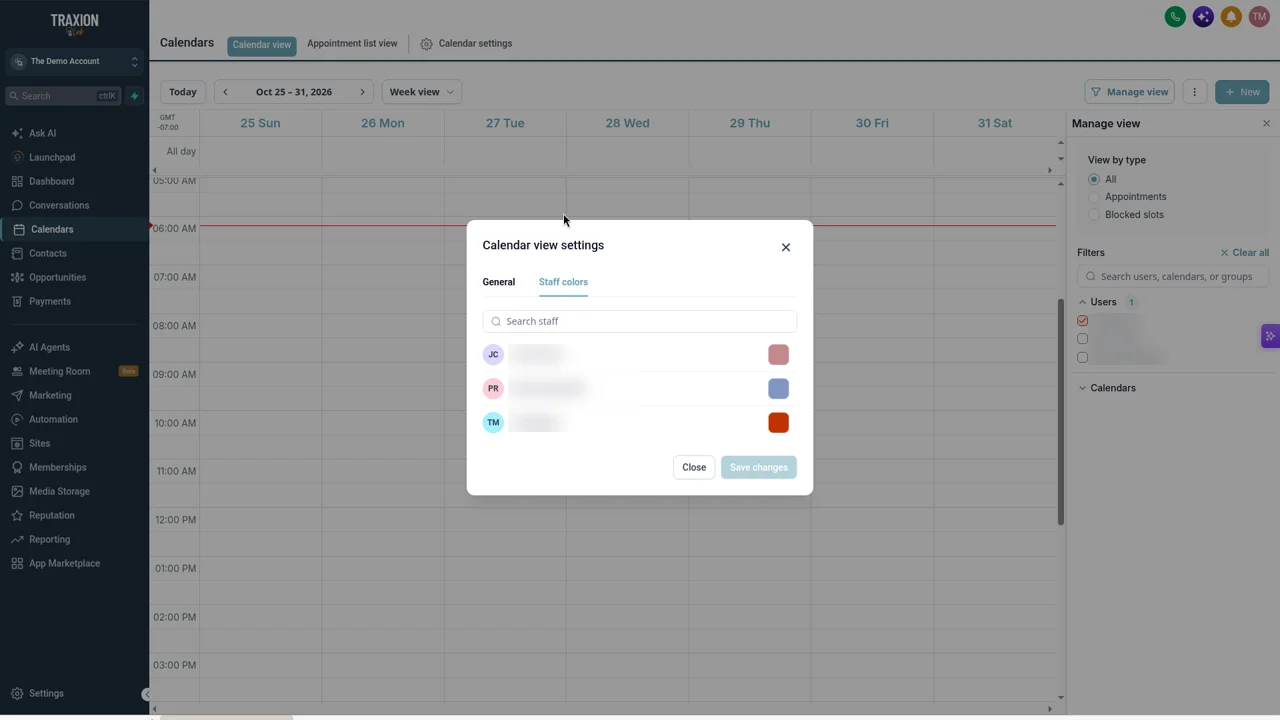
Open the Staff colors tab to recolor team members. Under Color events by, choose Calendar colors or Staff colors, then click Save changes.
Part 2 · Export
Set the filters and dates you want, open the same ⋮ menu, and choose Export to PDF or Export to CSV.
Check in your account: Export to CSV is greyed out when the view has no appointments. CSV files leave out blocked slots.
A real-world example
A junk removal company's morning huddle
Three crews, one shared calendar, and a lot of "which truck is that?"
Color
The owner gives each crew lead a staff color and colors tiles by staff.
Shade
Grey-out shows when each crew is off, so empty time doesn't look bookable.
Each evening the dispatcher exports tomorrow's day view to PDF and texts it to the crews.
Tips from our team
- Use 15-minute grids for short jobs. Quick visits and consults are easier to read on a finer grid.
- Export CSV for payroll or job costing. It uses the same filters as your screen, so filter to one staff member first.
- Your old time zone setting moved here. If you set one before, it carried over automatically.
FAQ
Your quick win this month
Export tomorrow's schedule
Open the calendar, filter to tomorrow, and export to PDF. Want help setting up team calendars? Book a short onboarding call.
Works best alongside
These settings live on your TraxionLab calendar view.