What it is
Two upgrades to Conversations. Keyword search finds the exact message across your inbox. New filters narrow the list by call outcome, pipeline, stage, and more.
Search everything
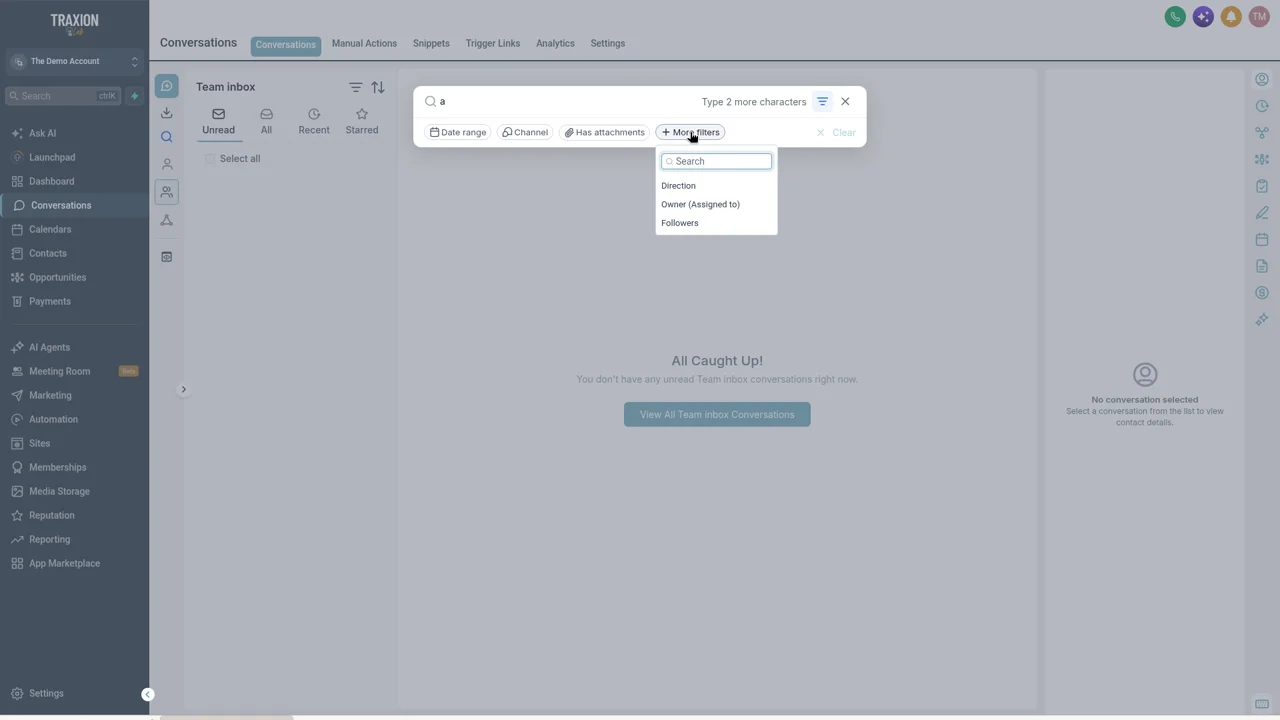
Search across your conversations by keyword, then narrow by date range, channel, direction, owner, attachments, or followers.
Find a contact too
The same search box finds a contact by name, email, or phone number, so there is one place to look.
Filter by last call
Show only conversations whose last call was completed, went unanswered, or went to voicemail.
Filter by deal
Filter by opportunity pipeline, stage, or status, plus contact type and the last message channel. Combine filters with AND or OR.
Who it's for
Anyone who works out of the inbox all day.
- Office managers & dispatchers
- Front desks at med spas
- Real estate agents
- Owners checking on the team
- Logistics & junk removal coordinators
Set it up in TraxionLab
Turn on two Labs switches, then open Conversations and try both.
Part 1 · Turn it on
Log in at app.traxionlab.com, go to Settings → Labs, and turn on Search Conversations by Keyword and New Filters in Conversations.
Check in your account: If these are already live in your account, you will not see them in Labs. Skip to the next step.
Part 2 · Search your inbox
Open Conversations and click the magnifier icon in the narrow left rail. Type at least 3 characters in Search by keyword, name, email or phone.
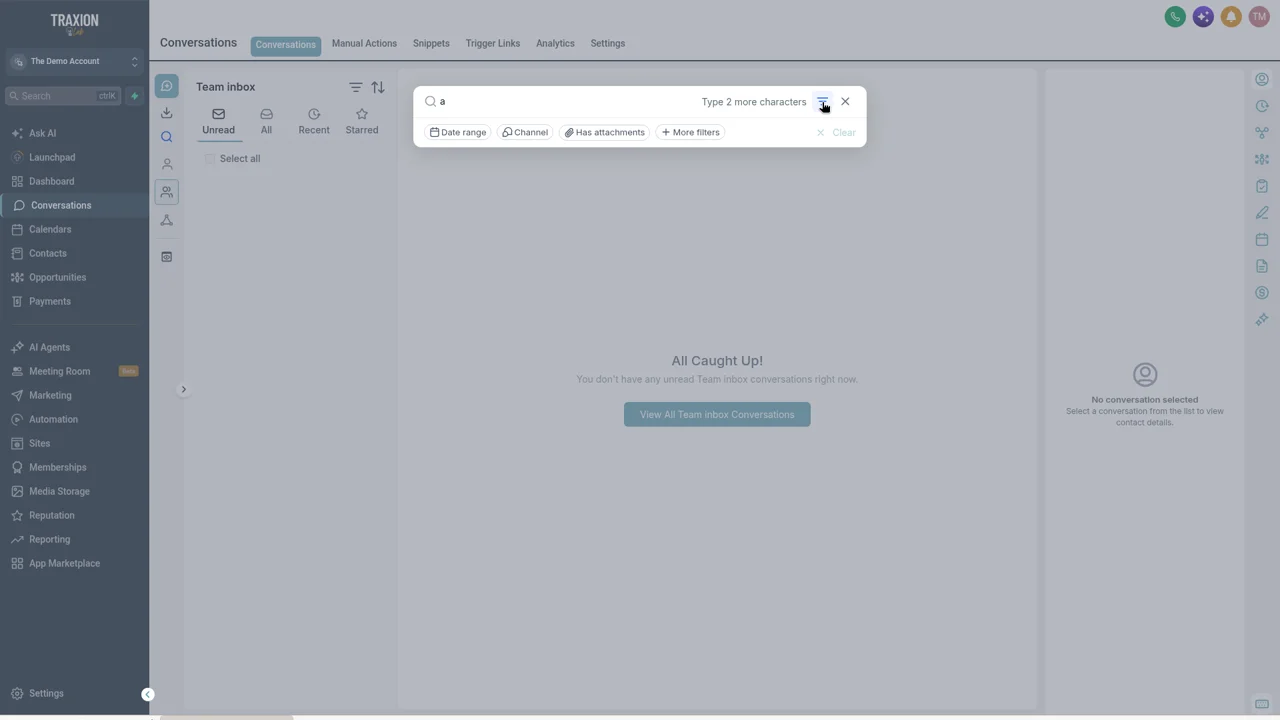
Narrow the results with Date range, Channel, or Has attachments. Click + More filters for Direction, Owner (Assigned to), and Followers. Click Clear to start over.
Part 3 · Filter the list
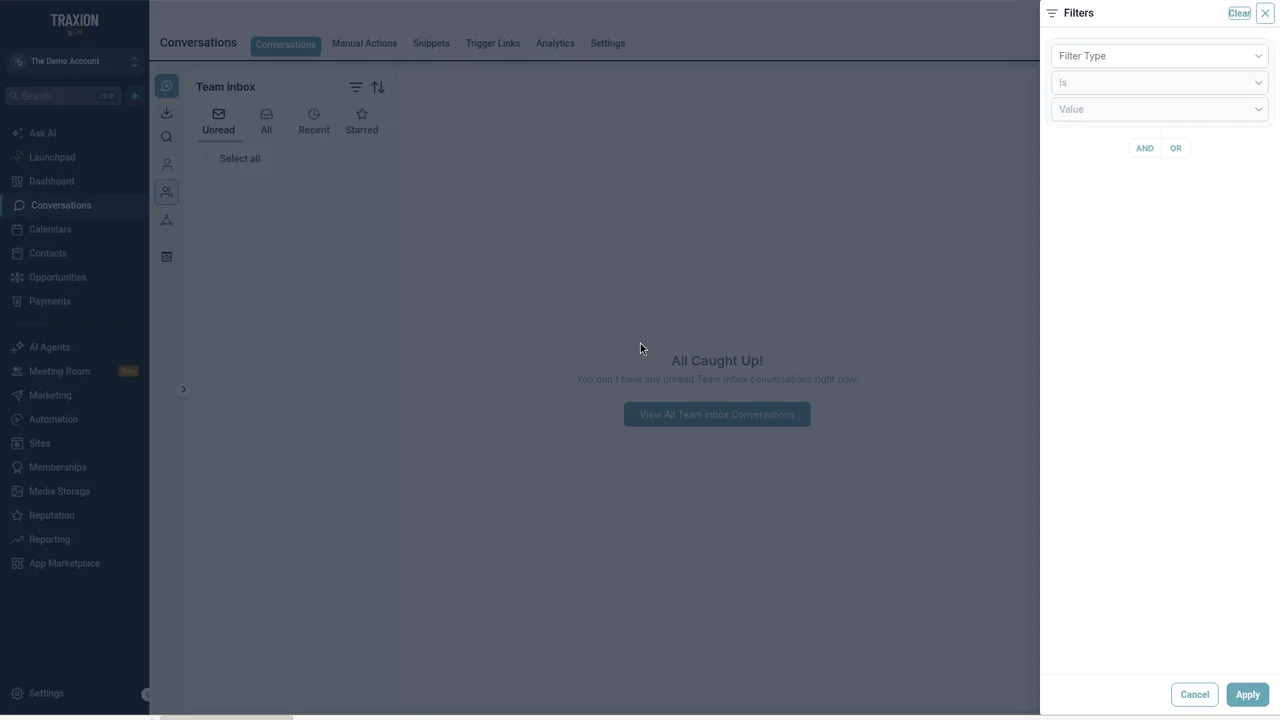
Click the filters icon next to Team inbox. In the Filters panel, open Filter Type, then set Is and Value.
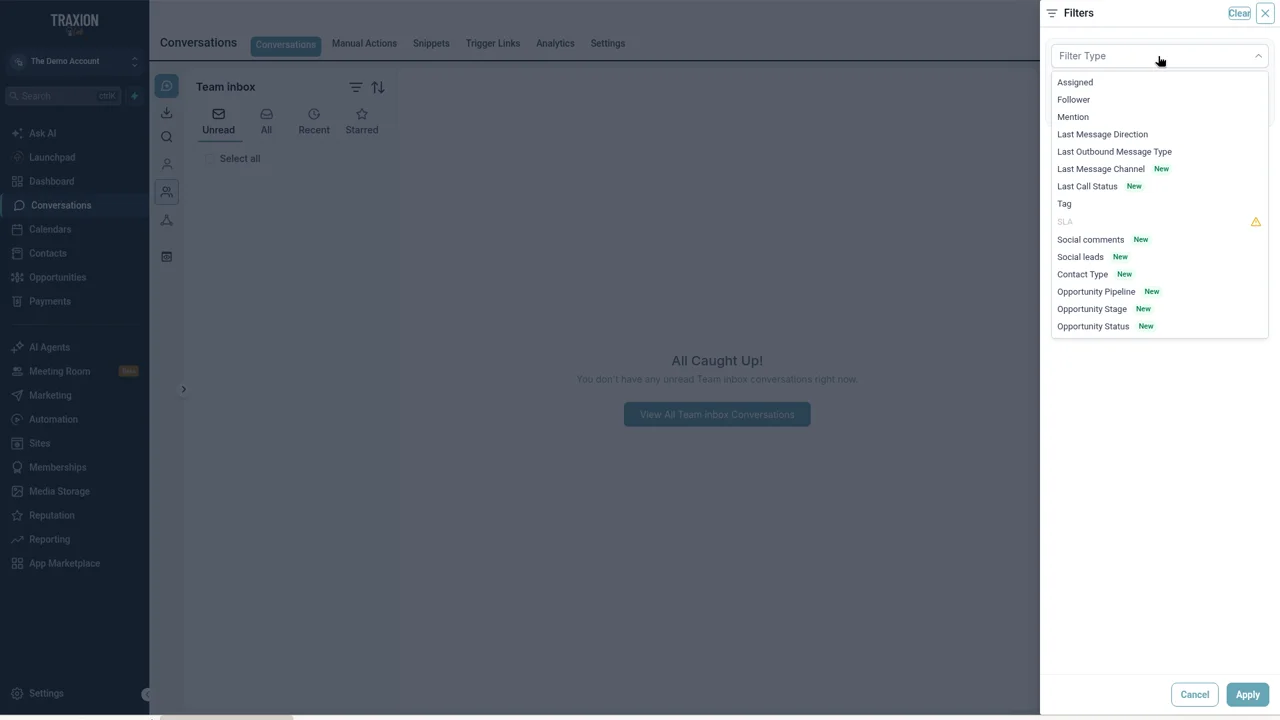
Choose Last Call Status and pick the calls you missed, like no answer and voicemail. Use AND or OR to add Opportunity Stage if you only want open deals, then click Apply.
A real-world example
A roofing office on a Monday morning
After a stormy weekend, the office manager has a long callback list.
Filter
She filters to Last Call Status: no answer or voicemail, and the Estimate scheduled stage.
Call
That's her callback list, with no spreadsheet needed.
Search
A homeowner says they sent photos of the damage. She searches "photos" with Has attachments and finds them right away.
Tips from our team
- Search a phrase, not a sentence. "gate code" or "invoice" finds more than a full question.
- Use OR for callback lists. Last Call Status no answer OR voicemail catches everyone who didn't reach you.
- Clear before you switch tasks. Click Clear so a leftover filter doesn't hide new messages.
FAQ
Your quick win this month
Build your callback list in 30 seconds
Filter Conversations by Last Call Status and call back everyone who didn't reach you. Questions? We're happy to walk through it on a short call.
Works best alongside
Search and filters work across your unified inbox.