What it is
Meeting Room is a video room inside your TraxionLab account. You get a personal room with a link you can copy, you can start that room from My room, and a booking calendar can use Meeting Room as its meeting location.
Meet
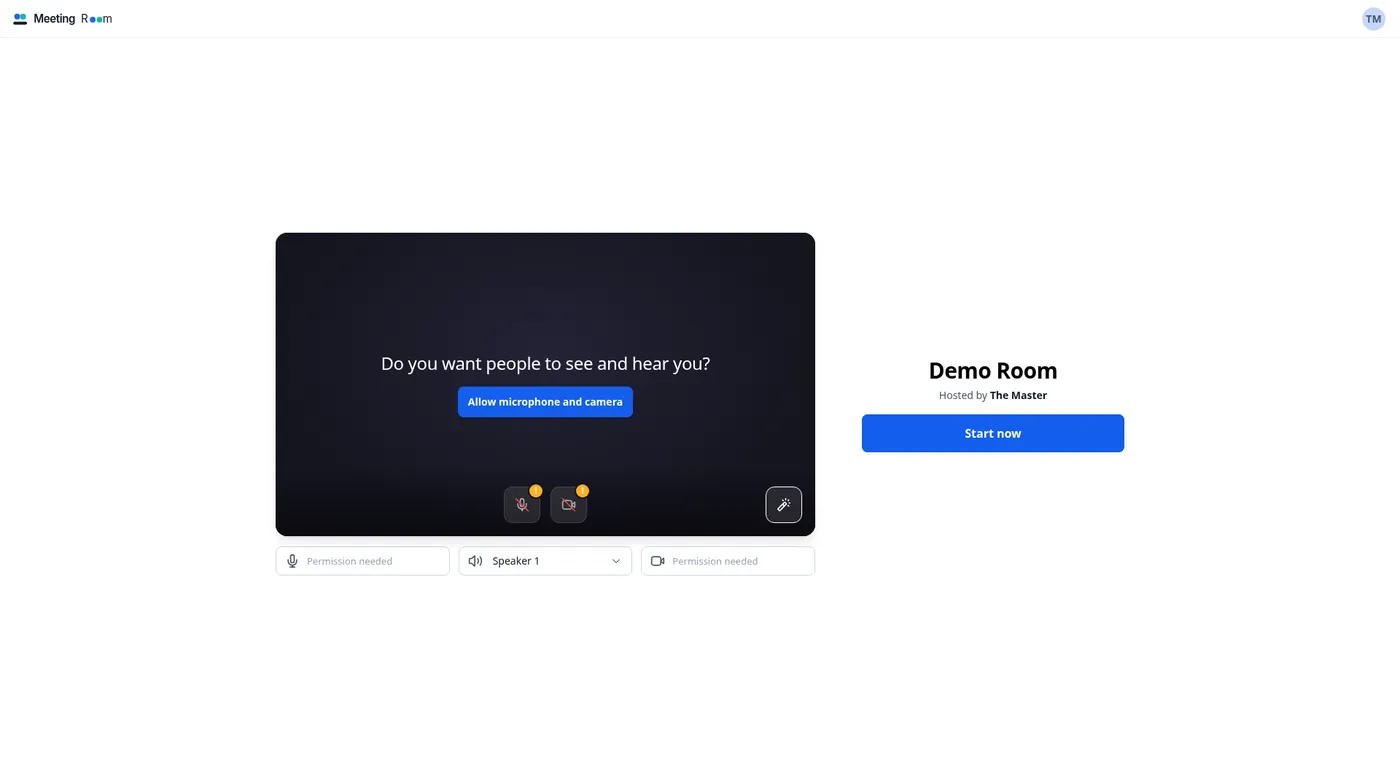
Start room opens a pre-join screen. You allow the microphone and camera, pick your devices, and click Start now.
Stay in control
The room form has a passcode, Waiting room (on by default), Allow guest users (on by default), Open room (off by default), and a Co-hosts card with Add.
Find it later
My room has a Meetings panel with a 7-day strip and View all, which opens Upcoming and Previous. Recordings and Transcripts are on the same page. Recordings appear once they are available.
Connect it
The Integrations tab lists Calendars, Communities, Courses, Events, and Webinars. My room can also add the room to Google Calendar and Yahoo Calendar.
Who it's for
Any business that meets customers on video and books those conversations on a TraxionLab calendar.
- Consultants & coaches
- Contractors doing virtual estimates
- Real estate & lending
- Med spas & wellness consults
- Agencies & freelancers
- Teams with a weekly huddle
Set it up in TraxionLab
These steps match the Meeting Room screens in TraxionLab. The feature is in beta. If Meeting Room is missing from your left menu, email support@traxionlab.com.
Part 1 · Open Meeting Room
Log in at app.traxionlab.com. In the left menu, Meeting Room is a top-level item with a Beta tag, directly below AI Agents and above Marketing.
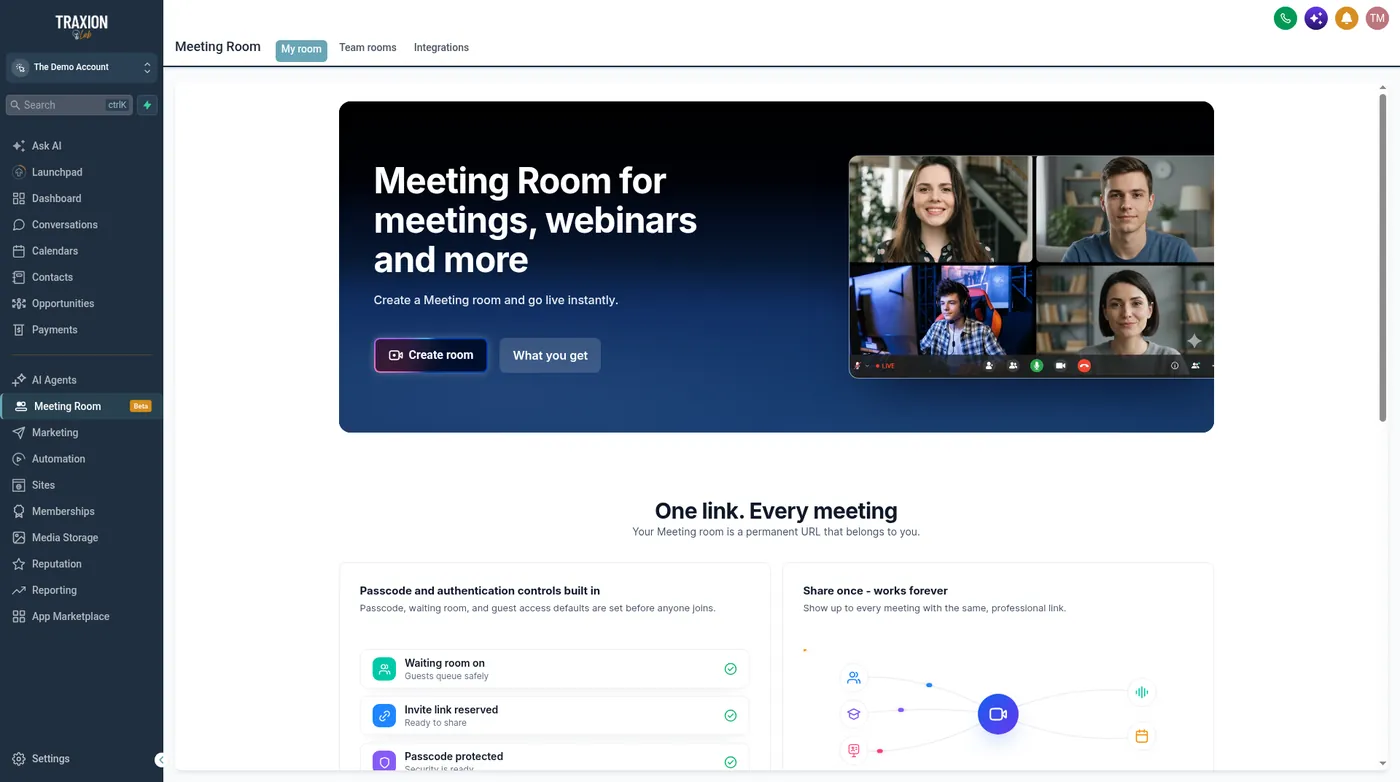
Meeting Room is in beta and may not be enabled in every account yet. If you do not see it, email support@traxionlab.com.
The Meeting Room page has three tabs: My room, Team rooms, and Integrations.
Part 2 · Create your room
On My room, click Create room.
The form has a Room details card (Name, and Room link with an editable ending and an Available check), a Security card (Passcode, with the note "Leave blank and we'll generate one for you"; Waiting room on by default; Allow guest users on by default; Open room off by default), and a Co-hosts card with an Add button.
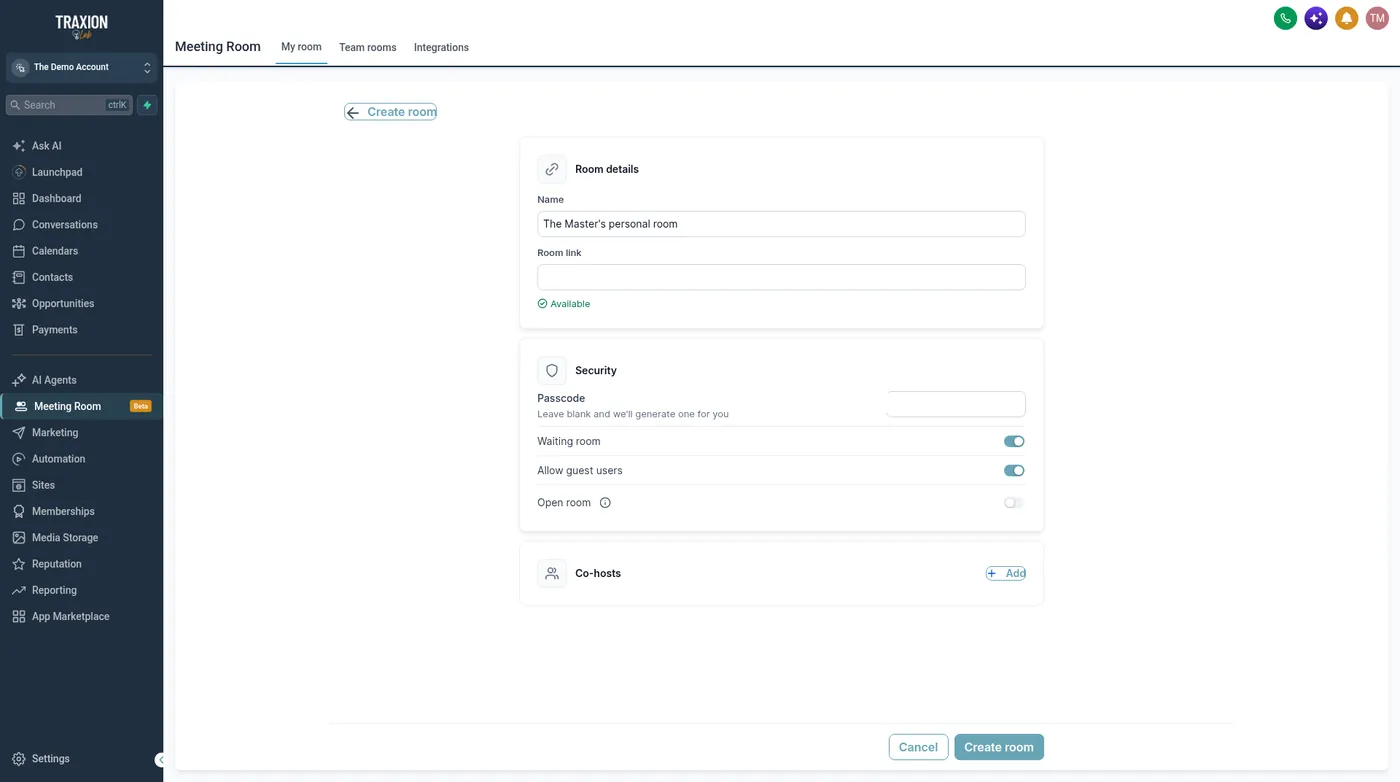
Click Create room at the bottom of the form. A Personal room created message appears.
Part 3 · What My room shows next
My room then shows your Room link with a copy button, Start room, and Edit settings. A Settings summary lists the passcode, Waiting room, Allow guest users, and Open room. Add to calendar lists Google Calendar and Yahoo Calendar.
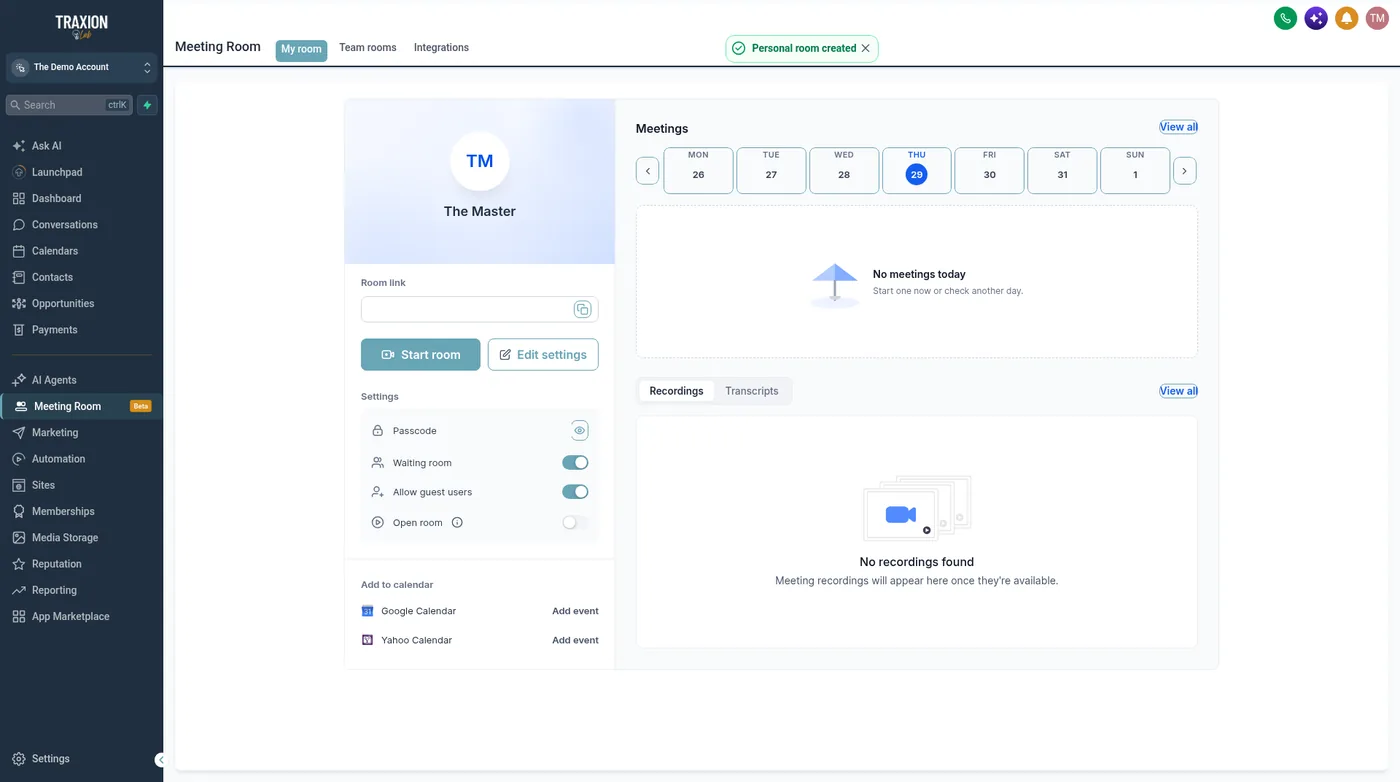
Editing uses Edit room, with a Save changes button.
Part 4 · Start the room
Click Start room. The pre-join screen shows your room name, Hosted by followed by your name, an Allow microphone and camera button, device pickers, and Start now.
Part 5 · Team rooms
Open the Team rooms tab. It says "See all your staff members' personal meeting rooms." Search by name or email. Each person has a permanent meeting link.
Part 6 · Add it to a booking calendar
Go to Calendars, then Calendar settings, then edit a calendar. Open Staff & meeting location. The Meeting location dropdown includes Custom, Meeting Room, Zoom, Google Meet, Phone, Full address, Ask the booker, and Microsoft Teams.
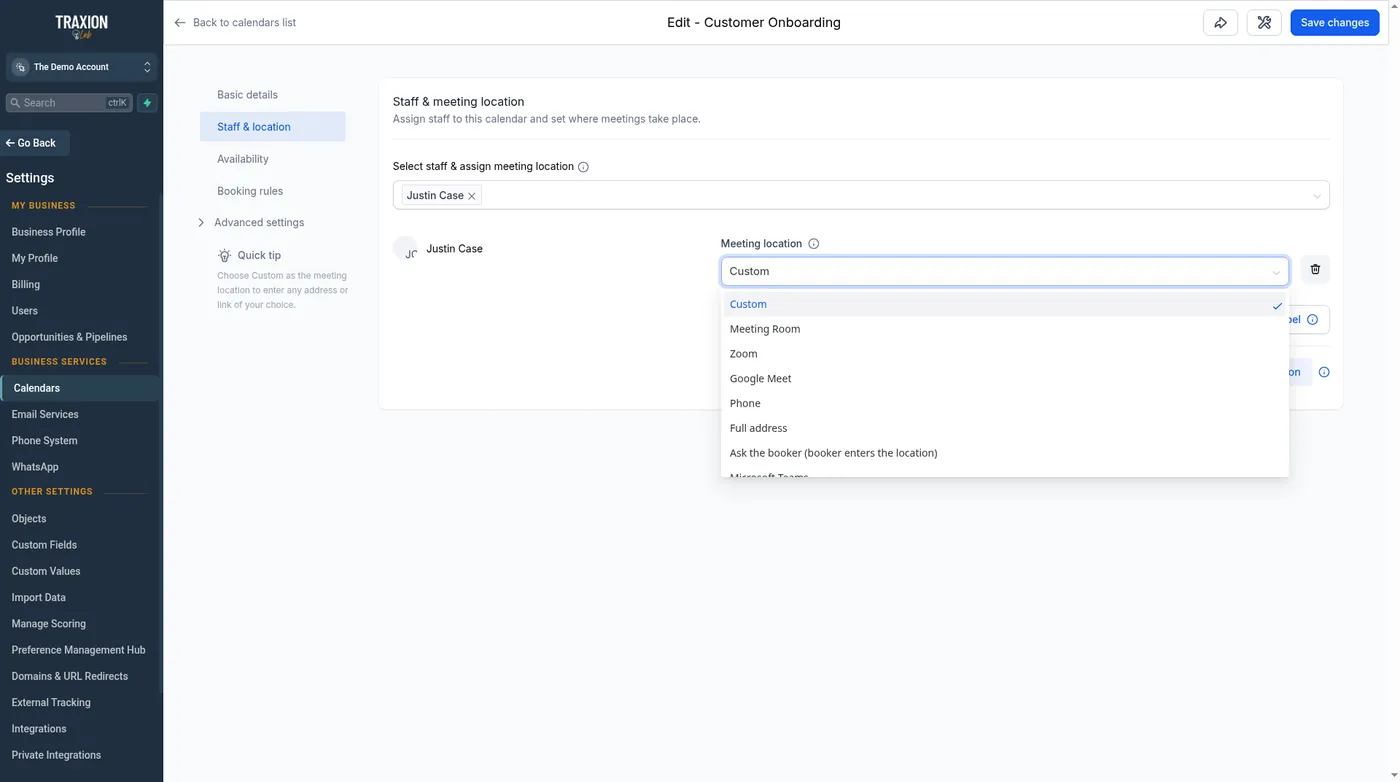
Choose Meeting Room, then click Save changes.
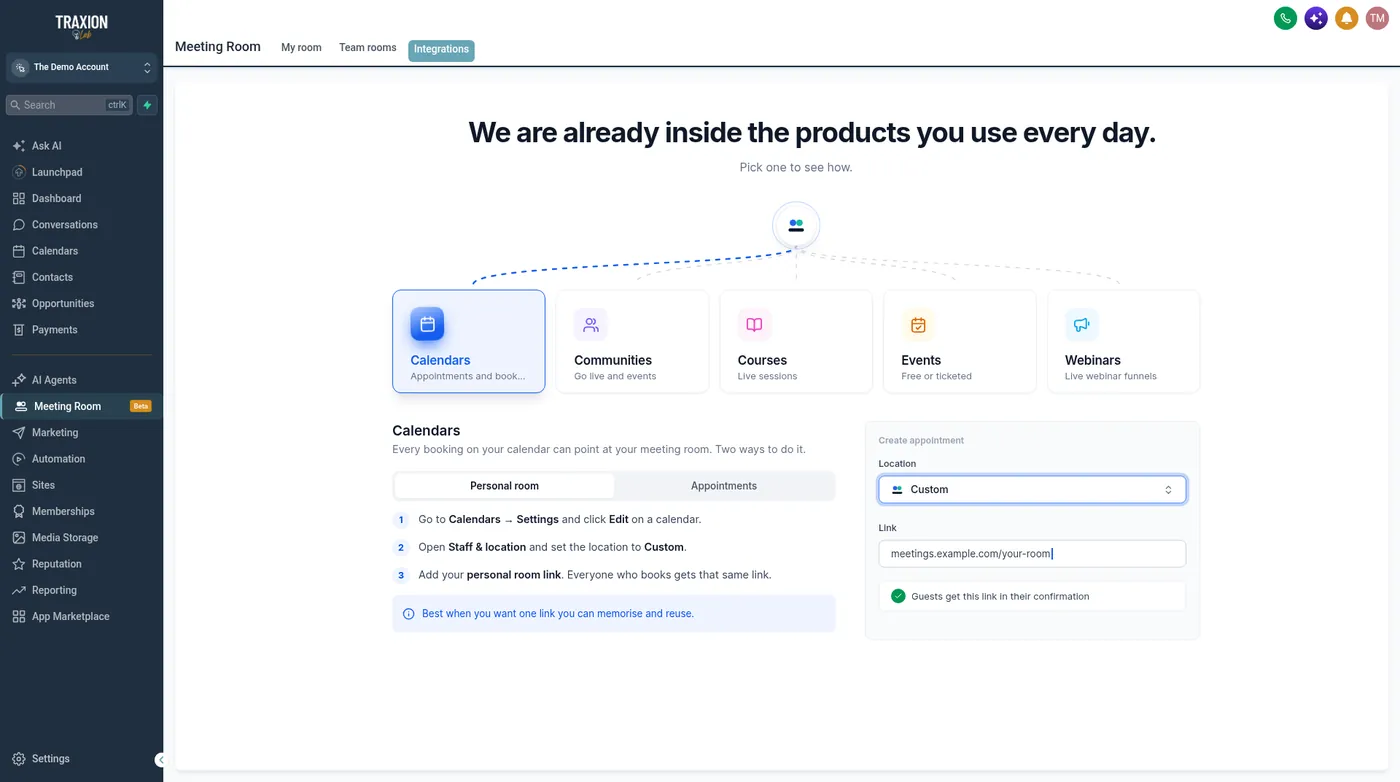
The Integrations tab describes another way: set the location to Custom and paste your personal room link, so everyone who books gets the same link. That screen says "Guests get this link in their confirmation." The tab lists where Meeting Room works: Calendars, Communities, Courses, Events, and Webinars.
Part 7 · Meetings, recordings, and transcripts
My room has a Meetings panel with a 7-day strip and View all.
View all opens Upcoming and Previous tabs with a date range.
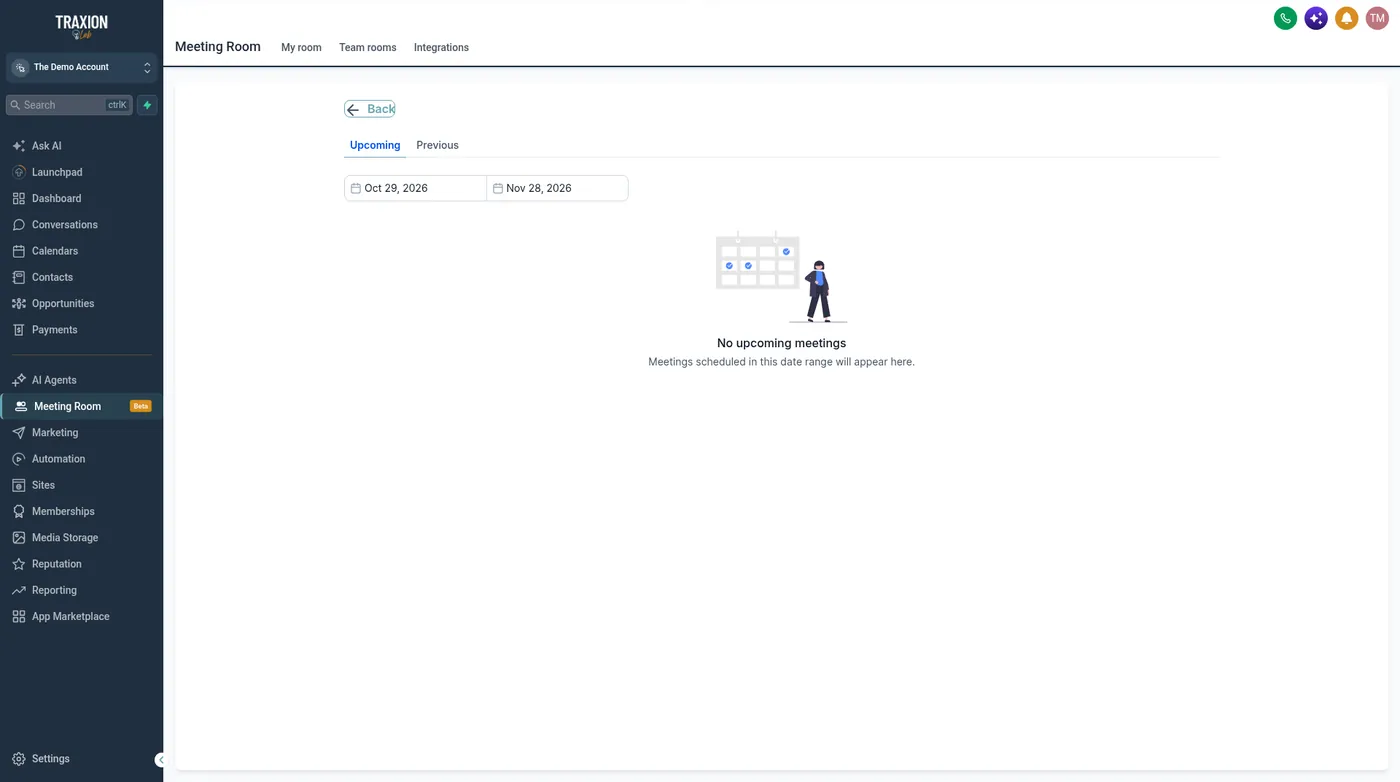
The same page has a Recordings / Transcripts toggle. Recordings appear there once they are available.
A real-world example
A remodeler who quotes over video
A small remodeling company would rather see the kitchen on video before sending a truck. They book that first look on a TraxionLab calendar whose meeting location is Meeting Room.
Book
The lead picks a time on the video-estimate calendar. That calendar's meeting location is Meeting Room.
Confirm
The booker gets the meeting location with the booking. On the Integrations tab, TraxionLab says guests get this link in their confirmation.
Meet
The owner clicks Start room, allows the microphone and camera, and clicks Start now.
Follow up
The owner sends a quote that afternoon.
Tips from our team
- Waiting room is on by default. Leave it on when you want to admit each person yourself. Open room is off by default.
- Use Custom when everyone should share one link. The Integrations tab says to set the meeting location to Custom and paste your personal room link. Everyone who books gets that same link.
- Use Meeting Room when you want that location on the calendar. Choose Meeting Room in the Meeting location dropdown, then click Save changes.
- Check the pre-join screen first. Click Allow microphone and camera and look at the device pickers before you click Start now.
- Meeting Room is in beta. If it is missing from the left menu, email support@traxionlab.com.
FAQ
Your quick win this week
Set up your room before your next call
Create your room, set one calendar's meeting location to Meeting Room, and click Start room once so the pre-join screen is familiar. Or let us set it up with you on a short onboarding call.
Works best alongside
A booking calendar can use Meeting Room as its meeting location.